Getting started with TidyType
A complete guide — setup, the AI chips, the keyboard, personalization, privacy, and troubleshooting.
TidyType is an Android keyboard with built-in AI. Tap a chip above the keys and the text you just wrote gets rewritten — fixed for grammar, translated to another language, made more casual, dictated by voice, and more. You choose which chips sit on your strip, and a built-in Chip Store has plenty more to add.
Everything runs on your phone. Nothing you type, speak, or translate is ever sent to the cloud. The AI model lives on your device.
What you'll need
- An Android phone with 5 GB RAM or more (any modern flagship or upper-mid-range phone from 2021 onward)
- 3 GB of free storage for the one-time AI model download
- Android 8.0 or later
- Internet connection for the initial setup — after that, TidyType works fully offline
TidyType is tested on the Samsung Galaxy S25 Ultra. Other modern phones should work but haven't been individually verified. Older or lower-end phones may not meet the memory requirements.
Getting set up — the 3-step wizard
Install TidyType from the Play Store (or sideload the APK your tester gave you). The launcher icon is a purple → blue → green gradient square with a stylized keyboard glyph.
Open TidyType from your app drawer. The Settings screen guides you through three quick steps.
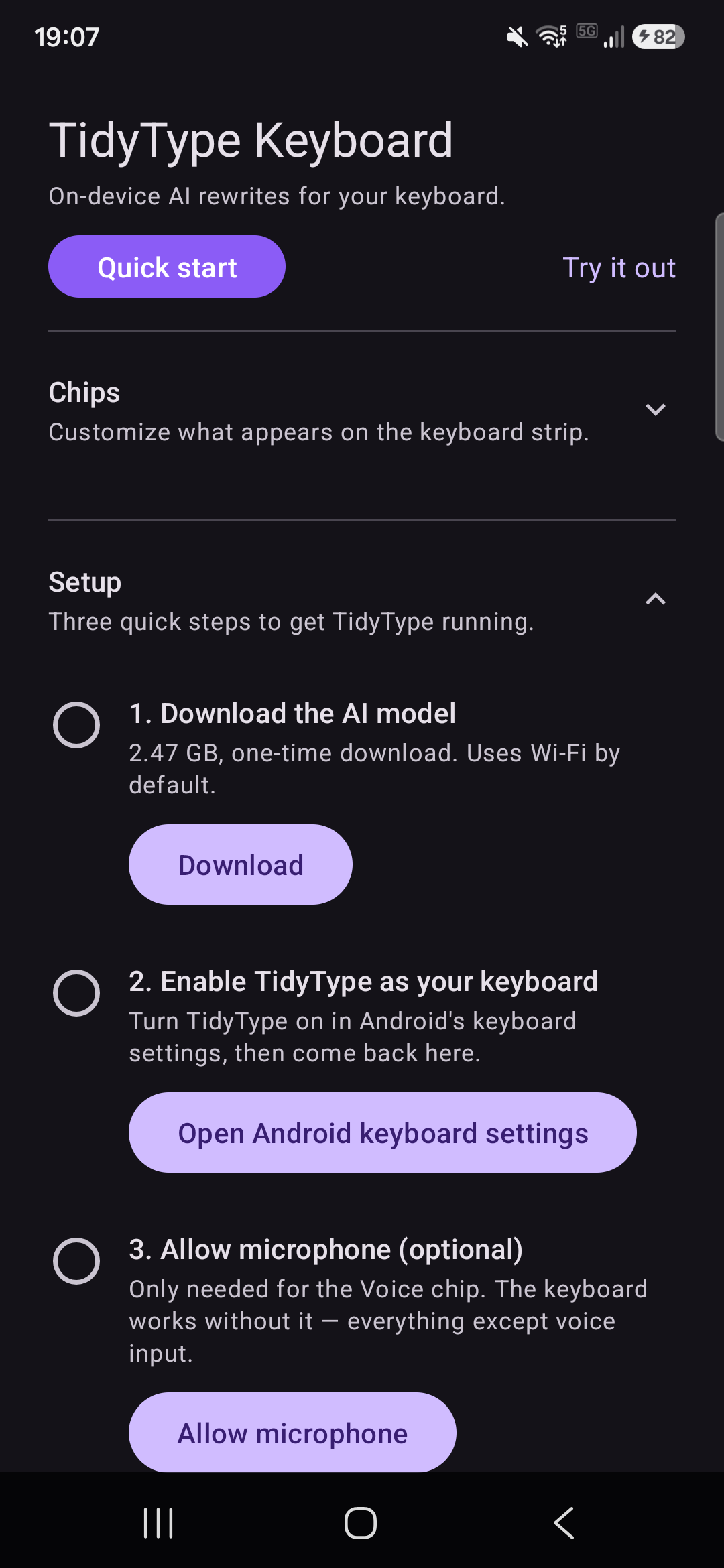
The Setup section is visible at the top of the Settings screen whenever there's still something to do. As soon as all three steps are done, it auto-collapses to a single “✅ Setup complete” line and your chips list moves front-and-centre.
Step 1 — Download the AI model
Tap Download. This is a 2.47 GB one-time download. It happens once, then you're offline forever.
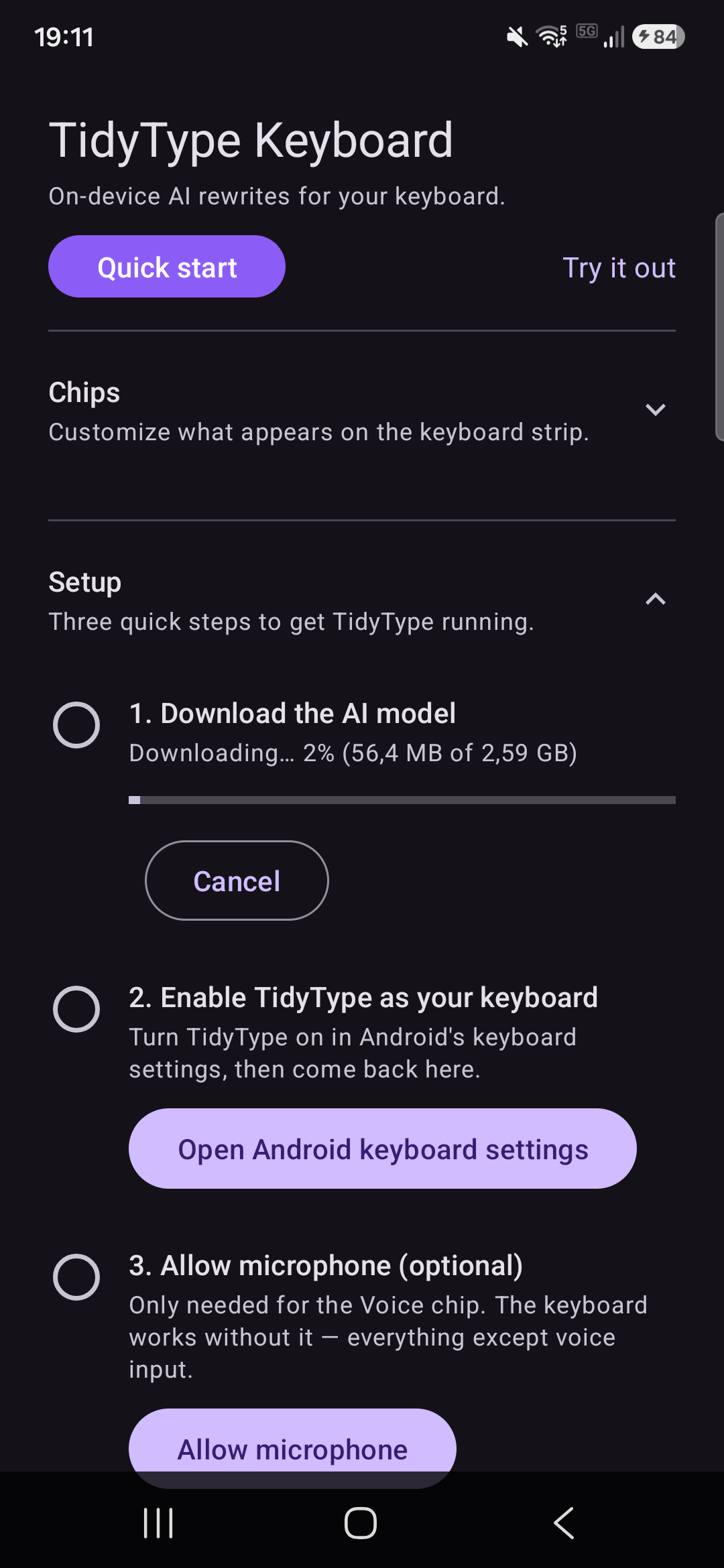
Why the model is so big: TidyType uses Google's Gemma 4 language model, running fully on your phone. To do that, we ship the entire model to your device instead of relying on a server.
Best practice
- Connect to Wi-Fi before starting. TidyType won't download over cellular unless you explicitly allow it.
- Keep your phone plugged in — the download typically takes 2–5 minutes on a decent connection.
- Don't close the app during the download. You can tap Cancel in the step row if you need to abort; TidyType cleans up the partial file. Tap Download again to restart from zero.
When the download finishes, Step 1 flips to ✅ “Model installed and ready.” A Delete model button appears in the same row in case you ever want to free up the 2.47 GB later (the keyboard itself keeps working without the model — you just lose the AI chips).
Step 2 — Enable TidyType as your keyboard
Android won't automatically use TidyType — you have to enable it in system settings and pick it as your active keyboard. This is an Android security policy that applies to every third-party keyboard.
Tap Open Android keyboard settings. This takes you to your phone's Language & input page.
- Enable TidyType in the list of available keyboards. You'll see a warning like “This input method may collect what you type.” — this is a standard Android warning shown for every third-party keyboard. TidyType does not collect anything; everything is on-device.
- Come back to TidyType — Step 2 will now show ✅ enabled with a Set as default keyboard button. Tap it to open Android's keyboard picker and select TidyType. This is what makes the keyboard actually appear when you tap a text field.
On some Samsung devices you may need to accept the warning twice before the keyboard binds — a Samsung One UI quirk.
💡 Tip the ⌨ icon in your status bar (visible whenever you have more than one keyboard enabled) lets you switch keyboards without leaving the app you're in. Useful during setup and any time you want to briefly switch back.
Once you've set TidyType as default, Step 2 shows ✅ “Active as your default keyboard.”
Step 3 — Allow microphone (optional)
Tap Allow microphone if you plan to use the 🎙 Voice chip. The permission only unlocks voice input — the rest of the keyboard works fine without it.
If you skip this step (never tap Allow, or tap Deny), TidyType still installs and works. The Voice chip is disabled until you grant the permission, which you can do at any time by coming back to this step in Settings.
Setup complete
When all three steps reach ✅, the Setup section collapses to a single “✅ Setup complete — tap to review” line and your Chips section auto-expands. That's the everyday view — Setup tucked away, chips ready to customize. Tap Setup complete any time to expand it and review the three finished steps:
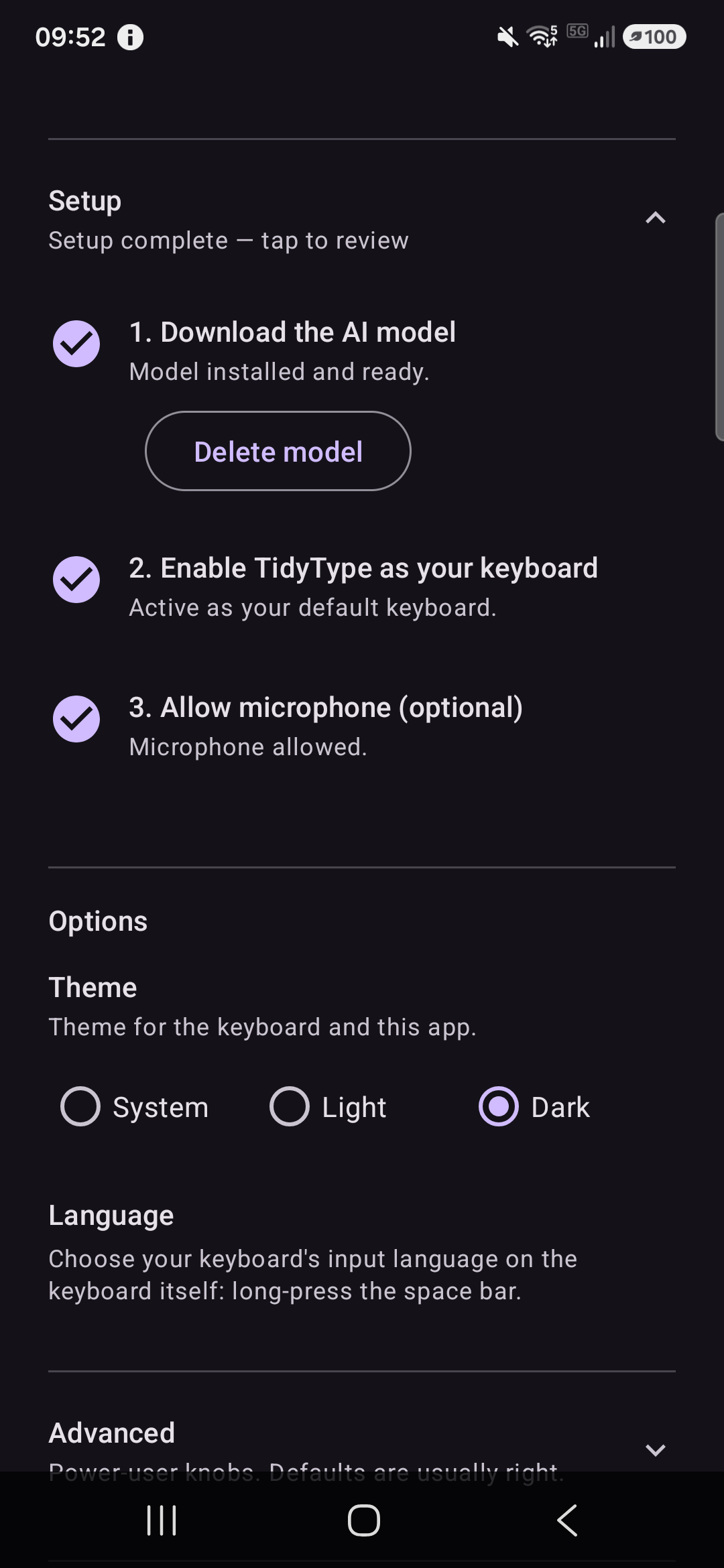
If any step ever regresses (you delete the model, disable the keyboard in system Settings, or revoke the microphone permission), the Setup section re-expands automatically so you can address whatever needs re-doing.
Try it out
The quickest way to see TidyType work is the Quick start screen: tap Quick start at the top of TidyType's Settings. It opens a practice text box with the keyboard already up, plus a few one-line hints for the gestures worth knowing.
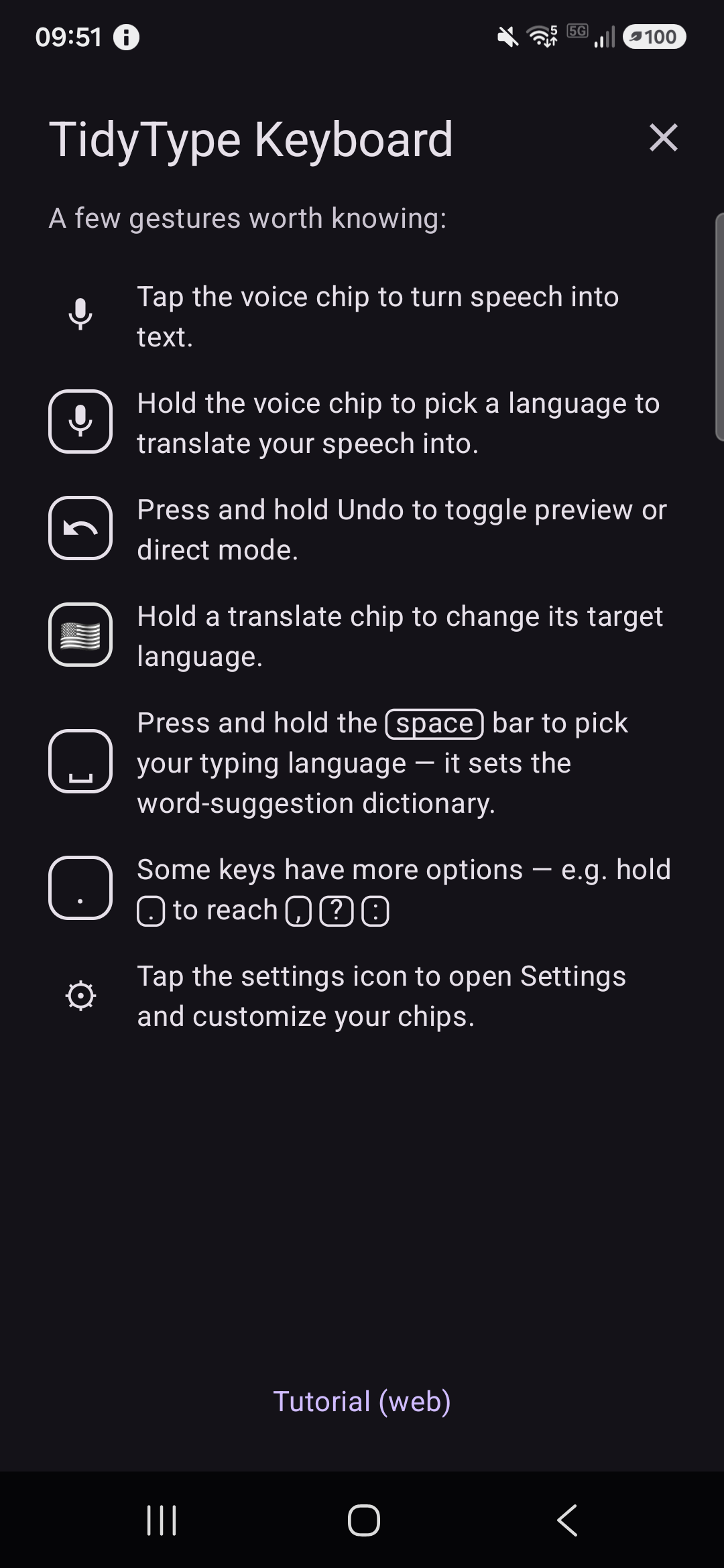
Or just open any app with a text field — Messages, WhatsApp, your email, even the search bar in your browser. Tap the text field. TidyType appears with a row of colored chips above the keys.
Type something. Then tap a chip to rewrite it.
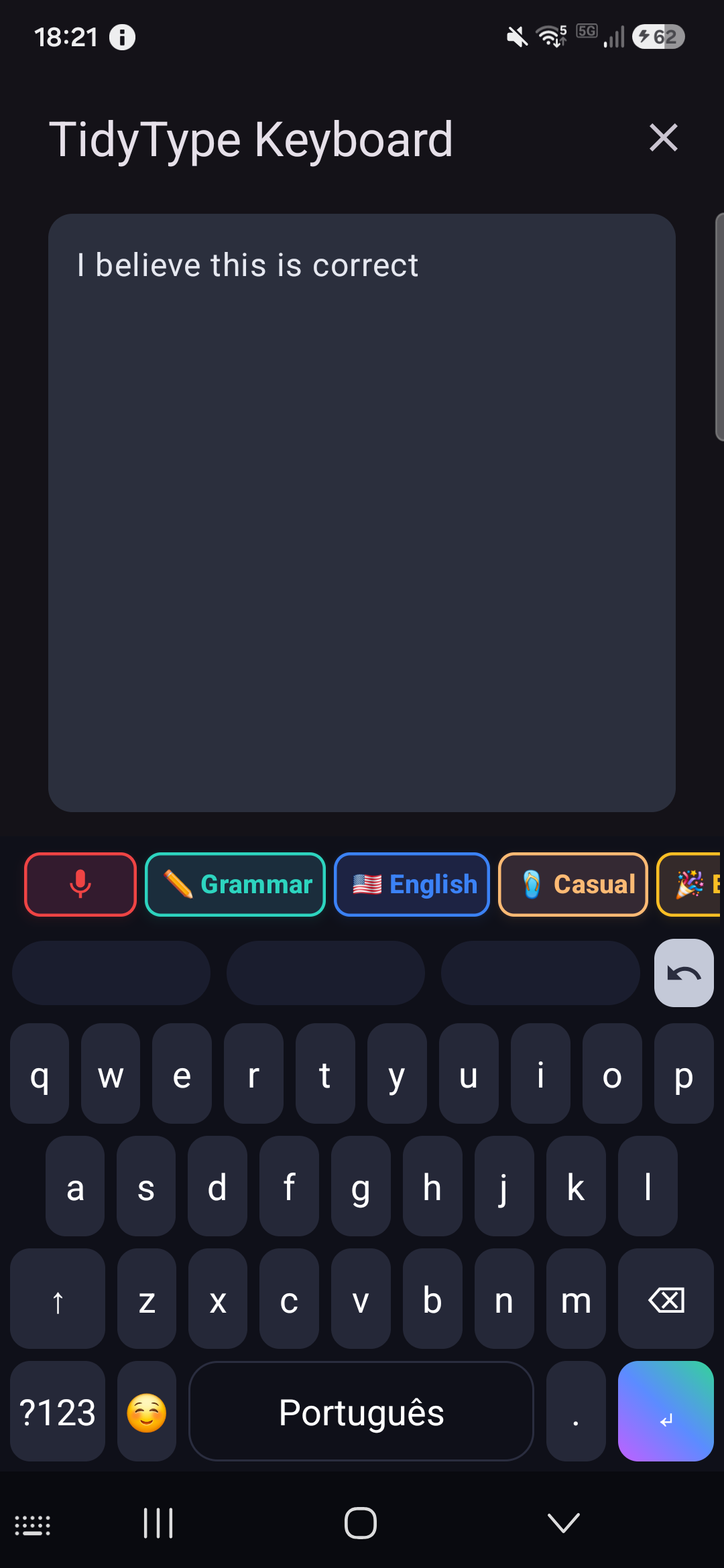
▶ Watch chip usage on a real Android device
Using the chips
The chip strip lives above your keyboard and always shows up when you're typing. Each chip is a one-tap rewrite.
TidyType starts you off with five chips on a fresh install:
| Chip | What it does |
|---|---|
| 🎙 Voice | Records your voice, transcribes or translates spoken audio (built-in) |
| ✏️ Grammar | Fixes spelling, punctuation, and grammar without changing your voice |
| 🇺🇸 English | One-tap translation to English — long-press to switch the language |
| 🩴 Casual | Rewrites in a relaxed, friendly tone |
| 🎉 Emoji | Sprinkles a few fitting emoji into your text |
That's just the starting set. The Chip Store has many more — Polish, Short, Simple, Formal, Confident, Warm, Fun, Biz, and translation chips for other languages — and you can create your own. See Personalizing chips below.
How a chip acts on your text
- If you have text selected, the chip rewrites only the selection. Your cursor and selection are preserved on undo.
- If nothing is selected, the chip rewrites the whole text field.
- If the field is empty, chips are dimmed — nothing to rewrite.
The rewritten text streams into your field in real time — you watch it appear character by character. Underlined text means it's still “provisional” (not committed yet).
The Grammar chip
Tap ✏️ Grammar to fix spelling, punctuation, and grammar in your text. Your voice stays intact — it's a correction, not a rewrite.
i think its rong
I think it's wrong.
Good for: rushed messages, comments, forum posts, anything you'd run past a proofreader if you had time.
The Casual chip
Tap 🩴 Casual to rewrite your text in a relaxed, friendly tone — less stiff, more like how you'd talk to a friend.
I regret to inform you that I will be unable to attend.
Sorry, I won't be able to make it.
Good for: chats, group messages, replies to friends when a formal draft comes out sounding too stiff.
Want the opposite? A Formal chip (professional, work tone) and a Confident chip live in the Chip Store — add them in a tap. See The Chip Store.
The Emoji chip
Tap 🎉 Emoji to sprinkle a few fitting emoji into your text. It keeps your words; it just adds emphasis where it makes sense.
Just shipped the new release, huge thanks to the team
Just shipped the new release 🚀 huge thanks to the team 🙌
Good for: social posts, announcements, celebratory messages.
Note results vary — emoji taste is personal. If a rewrite isn't your style, tap Undo and re-tap for a different take, or edit the chip's prompt to match your voice.
Translate chips
Translation chips each target one language. TidyType ships with 🇺🇸 English on the strip — tap it and whatever's in your field is translated to English in one shot. No menu, no extra step.
To switch a chip's language, long-press it. A picker appears with 23 supported languages:
- English, Português (Brasil), Português (Portugal)
- Spanish, French, Italian, German, Dutch, Swedish
- Polish, Turkish
- Russian, Ukrainian
- Arabic
- Japanese, Korean, Chinese (Simplified & Traditional)
- Hindi, Bengali, Thai, Vietnamese, Indonesian
Pick one and the chip switches to it — its flag, name, and target all update. So a long-press is how you turn your English chip into, say, a French or Japanese one. The picker remembers your recent choices, so languages you use often appear at the top.
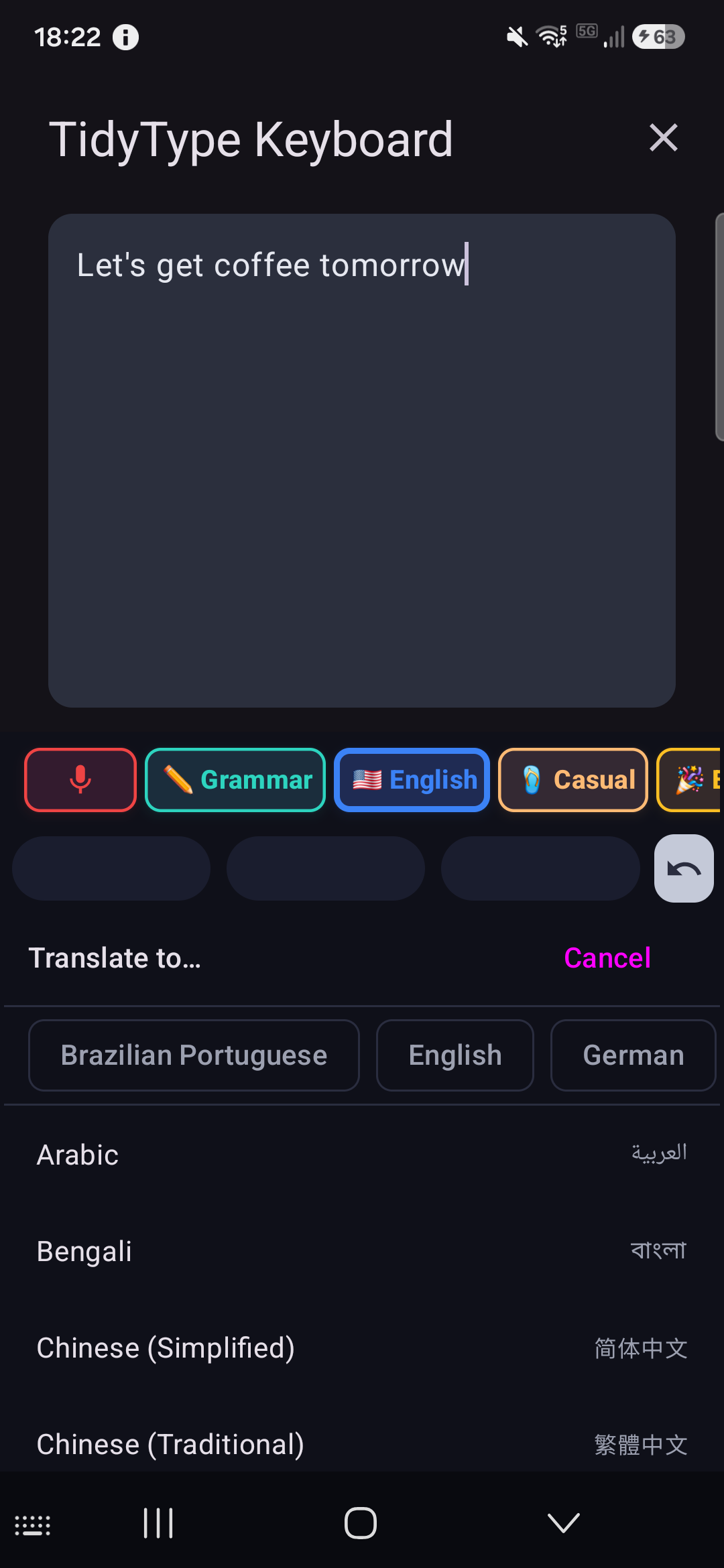
Want a dedicated chip per language? Add more from the Chip Store (Français and Português are there), or make your own with Add chip → Translate. Keep an English chip and a French chip side by side and each is a single tap.
Você quer marcar a reunião para amanhã de manhã?
Do you want to schedule the meeting for tomorrow morning?
Translation is one inference — the AI reads your text and outputs the target language directly. There's no “translate to English first” middle step.
The Voice chip
Tap 🎙 Voice to speak instead of type. TidyType records what you say, transcribes it into text (with punctuation and capitalization added), and inserts it into your field.
How to use
- Tap 🎙 to start recording. The chip changes to
🎙 3 s(with a running seconds counter). - Speak your sentence.
- Tap the same chip again to stop. Transcription streams into the text field within about a second.
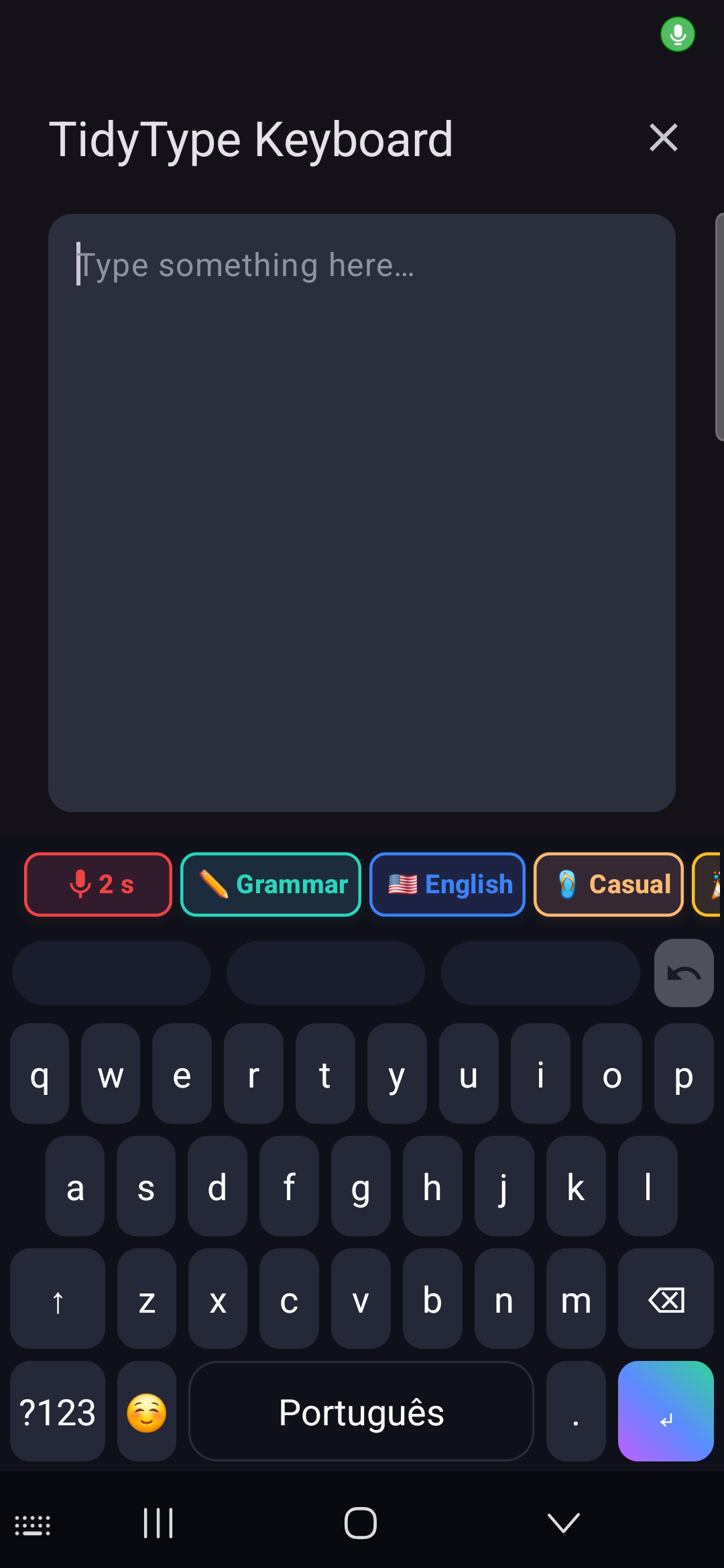
▶ Watch the Voice chip on a real device
Voice translation — same chip, single inference: long-press the Voice chip and pick “Translate to {language}” from the menu. Now speak in any language; TidyType transcribes AND translates in one step. No source-language flash, no double-latency.
Menu options on long-press:
- Transcribe — speech to text in the language you spoke
- Translate to {last target} — speech to translated text
- Pick translation language… — opens the language picker
Notes
- Recording has a 30-second maximum per session. Speak concisely.
- The chip is disabled in sensitive fields (passwords, OTP codes, credit card numbers) — TidyType never records voice when you're typing security information.
- The microphone only opens when you actively tap 🎙. TidyType is not listening in the background.
- The first voice request after opening the keyboard is slightly slower (~10 seconds) as the audio component loads. Second and subsequent requests are near-instant.
Undo — the safety net
Every rewrite is undoable for 5 seconds after it completes.
The ↩ Undo key sits at the right-hand end of the suggestions row, just above the letters — always there, dim when there's nothing to undo and lit for the 5 seconds after a rewrite. Tap it in that window to restore your original text.
After 5 seconds, the rewrite is committed and can't be reverted by TidyType. Your app's normal undo (usually shake-to-undo on Android, or long-press → undo) may still work, but that's your app's undo, not ours.
Other things that trigger auto-accept early
- You type anything during the 5-second window → your keystroke wins, the rewrite is kept as-is.
- You hide the keyboard → the rewrite is committed.
- You switch to a different text field → the rewrite is committed in the old field.
Rewrite preview — look before you leap
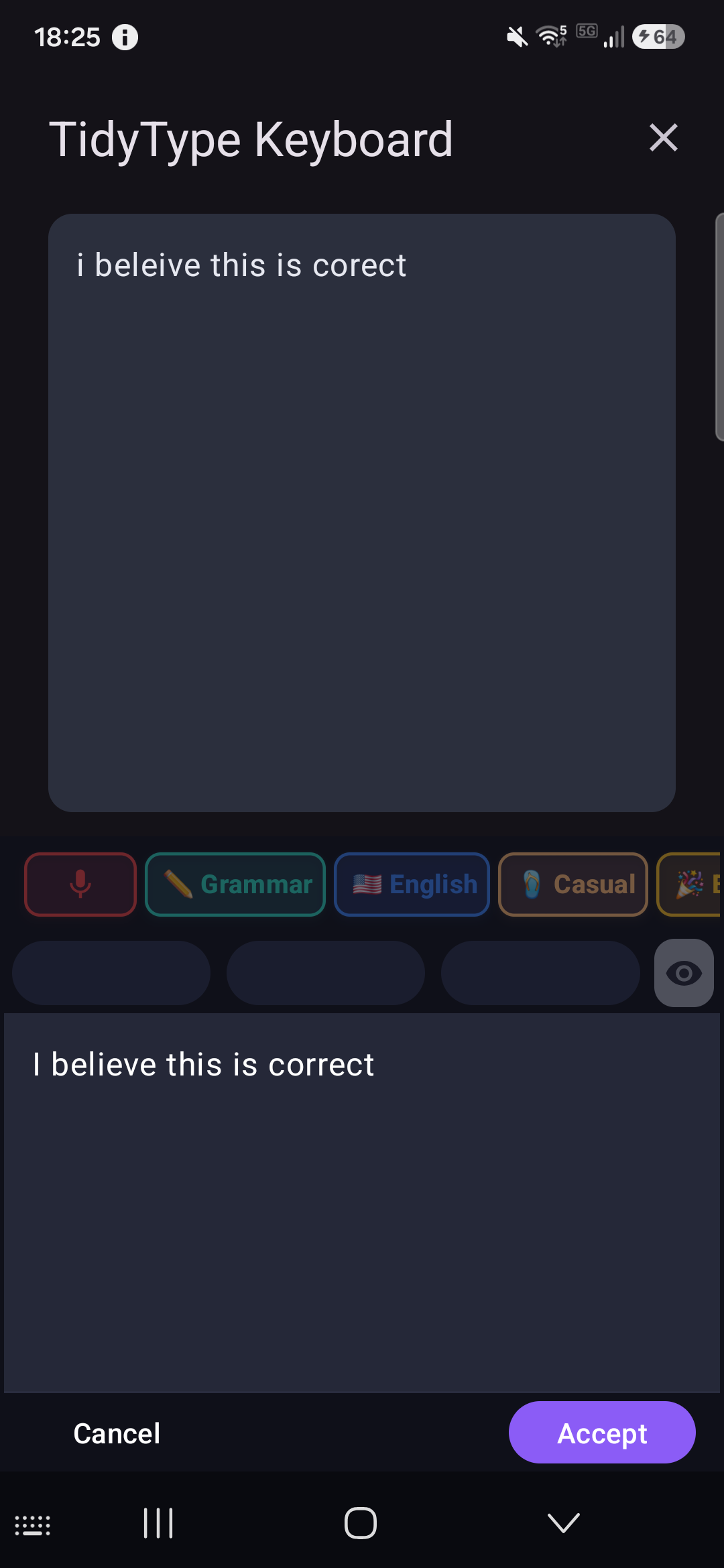
By default a chip rewrites your text in place — you watch it change right in the field, with Undo as the safety net. If you'd rather see a rewrite first and decide whether to keep it, switch on Preview mode.
Long-press the Undo key to toggle between the two modes. The key's icon tells you which one you're in:
- ↩ (arrow) — Direct mode (default): chips rewrite in place.
- 👁 (eye) — Preview mode: chips open a panel over the keyboard showing the proposed rewrite, with Accept and Cancel. Your text isn't touched until you tap Accept.
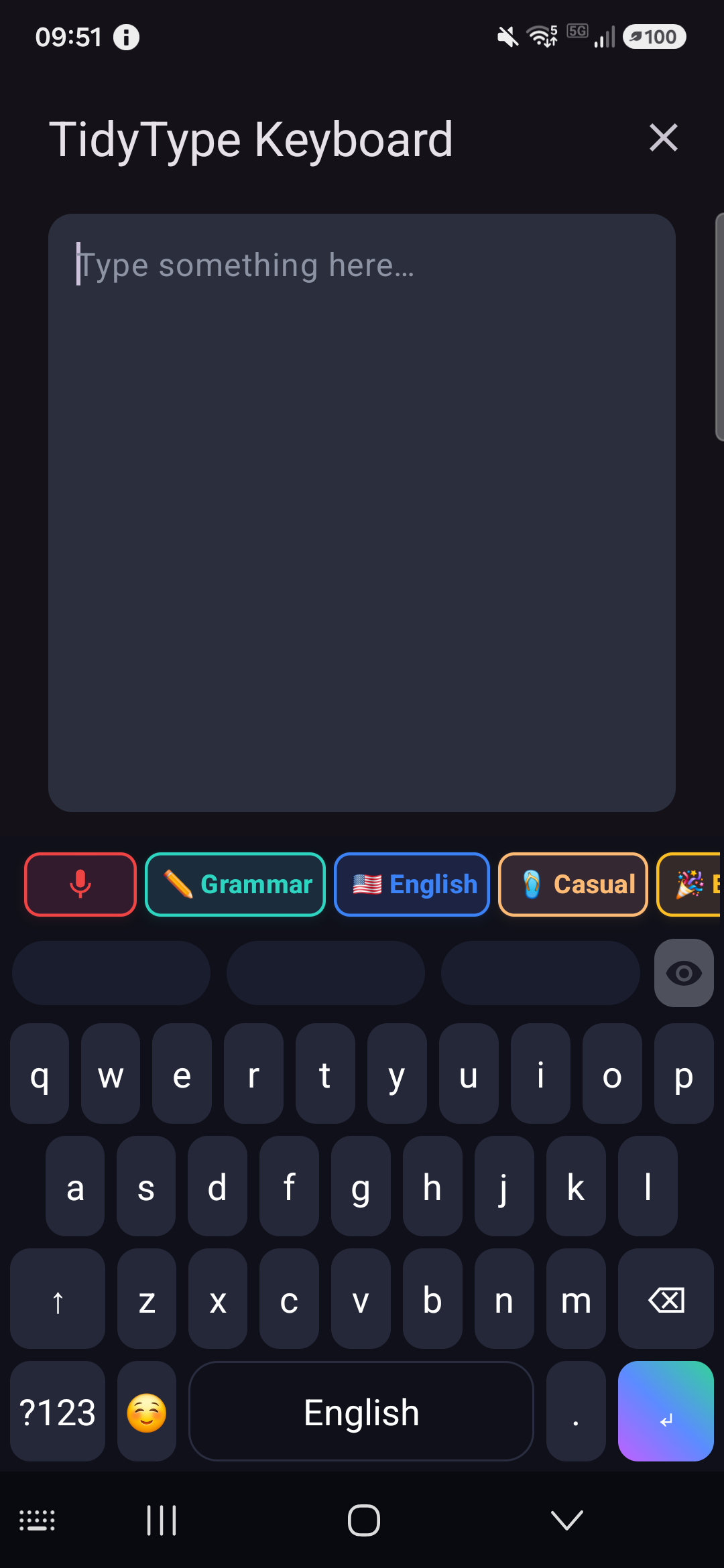
In Preview mode, tap any rewrite chip and the result streams into a panel while your original text stays put behind it. Tap Accept to apply it, or Cancel to discard it and leave your text exactly as it was.
- Tapping the Undo key is always Undo, in both modes — only the long-press switches modes.
- The mode is sticky: once you choose Preview (or Direct), it stays that way across keyboard reopens until you switch it back.
- Cancelling a preview changes nothing in your field — a true “never mind.”
The typing surface
Under the chip strip is a full keyboard. Nothing exotic — it works like every other Android keyboard, with a few small conveniences.
Layouts
- Letters (default). Standard QWERTY.
- Numbers & symbols — tap ?123 at the bottom-left to switch. Row of digits with
7 8 9 / 4 5 6 / 1 2 3 / 0in a visual numpad column, plus common punctuation and operators. - Extended symbols — from the number layout, tap ?#< at the bottom-left to reach brackets, currency (€ £ ¥), math symbols (± × ÷ √), and Romance-script accents (á é í ó ú ñ).
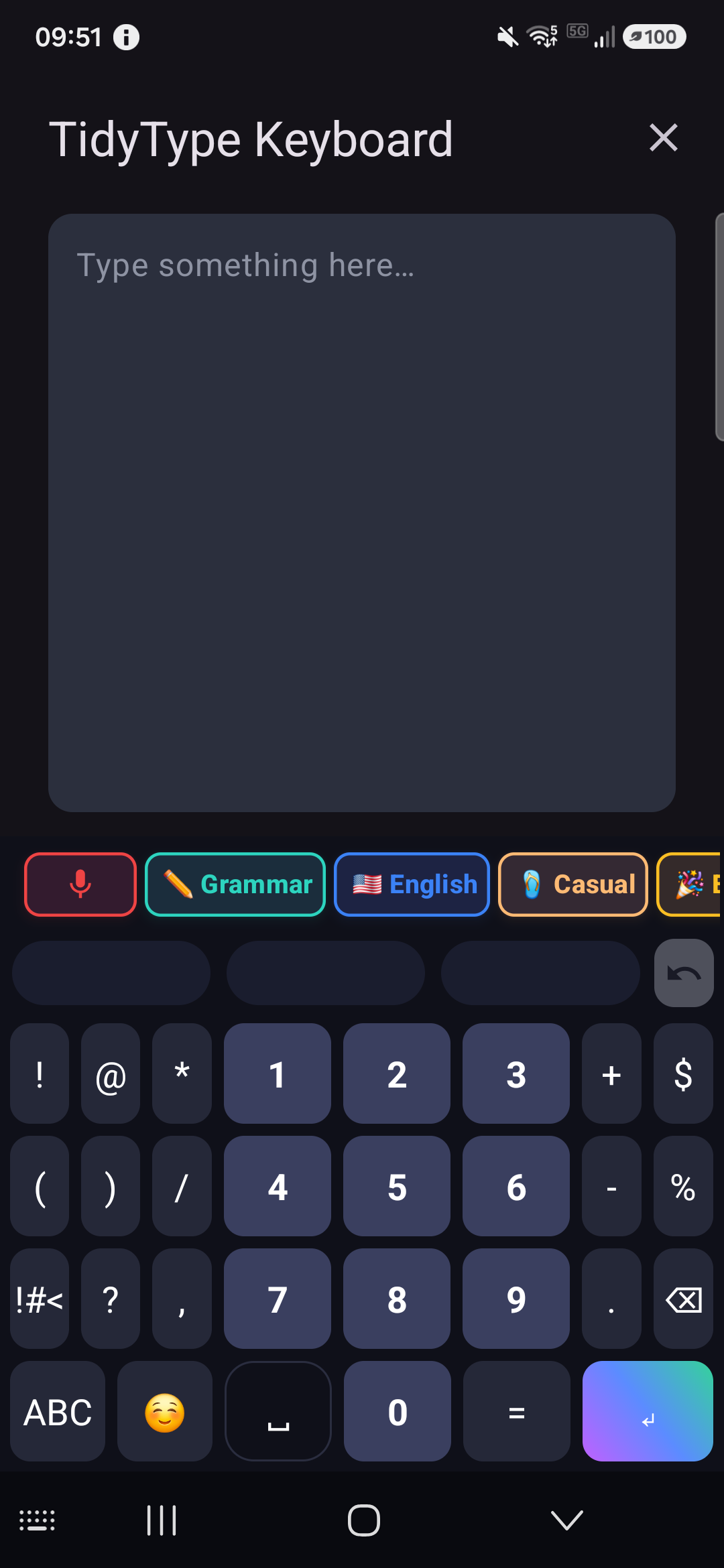
Return to letters from either symbol layout by tapping ABC.
Shift
- Single-tap the shift key — next letter is capitalized, then shift releases automatically.
- Double-tap shift — caps lock. Every letter capitalized until you tap shift again.
Long-press for accents
Long-press any letter to see accent and diacritic variants. Drag your finger to a variant to commit it.
- a → à á â ä ã å æ
- e → è é ê ë
- c → ç ć č
- n → ñ ń
- o → ò ó ô ö õ ø
- u → ù ú û ü ũ
- …and many more per language.
This is the same gesture as Samsung's default keyboard and GBoard.
Language on the space bar
TidyType supports seven typing languages with word suggestions: English, Portuguese (Brazilian), German, Spanish, French, Italian, and Dutch.
- Tap the space bar — inserts a space.
- Long-press the space bar — opens the input-language picker. Pick your language and the space-bar label updates to show it. Until you've picked one, the space bar shows a small “⌄ hold to choose language” hint instead of a language name.
You can also set the input language in Settings → Options → Language.
Backspace repeat
Tap and hold the backspace key. It deletes one character on the initial tap, then auto-repeats at ~20 characters per second.
Emoji
Tap the ☺️ emoji key on the bottom row to open the emoji palette — a category-tabbed grid with a Recents row and skin-tone variants (long-press an emoji with a skin tone to pick your default). Tap an emoji to insert it; backspace deletes a whole emoji at a time; tap ABC to return to letters.
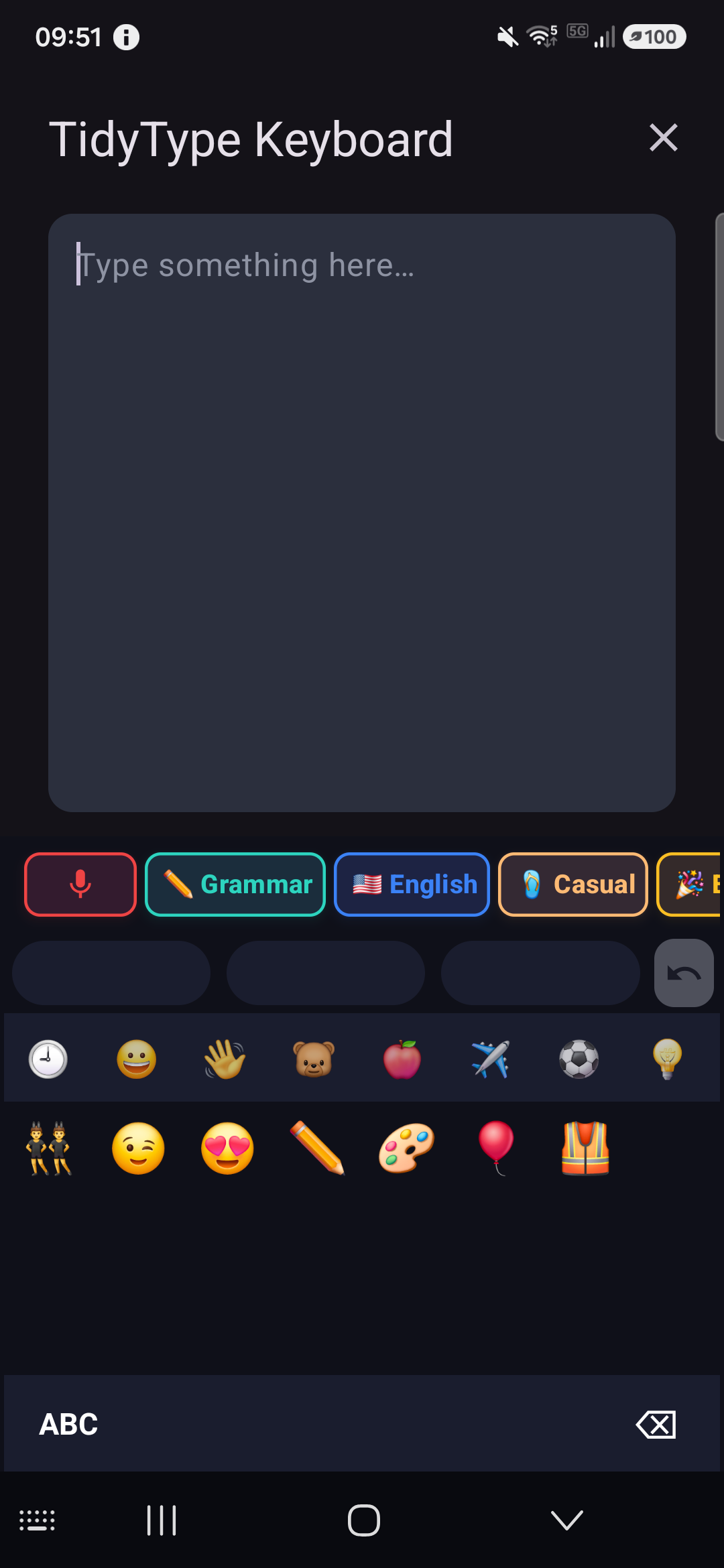
TidyType also suggests emoji as you type: type a keyword like pizza and 🍕 appears in the last slot of the suggestion strip — tap it to append the emoji after the word (“pizza 🍕”). Available in English and Portuguese (Brazilian). This is separate from the Emoji chip, which sprinkles emoji through a whole sentence with the AI (see above).
Settings shortcut
Open TidyType's Settings from any app by long-pressing the Enter key, or by left-swiping the chip strip to reveal the ⚙ Edit gear parked just past its right edge. (The bottom-row slot that used to hold a ⚙ gear is now the emoji key.) Useful when you want to add a new chip or change the AI backend without leaving the app you're in.
Personalizing chips
Your chip strip is yours to shape: add chips from the Chip Store, create your own, edit any chip's prompt (plus its name, icon, and colour), reorder them, duplicate them, and import/export them as files — and reset everything back to the starting set whenever you like.
Opening Chips settings
From TidyType Settings — via the launcher icon, by long-pressing the Enter key on the keyboard, or by swipe-revealing the ⚙ Edit gear on the chip strip — the Chips section appears near the top. If you finished the Setup wizard, Chips auto-expands so you land straight on your chip list.
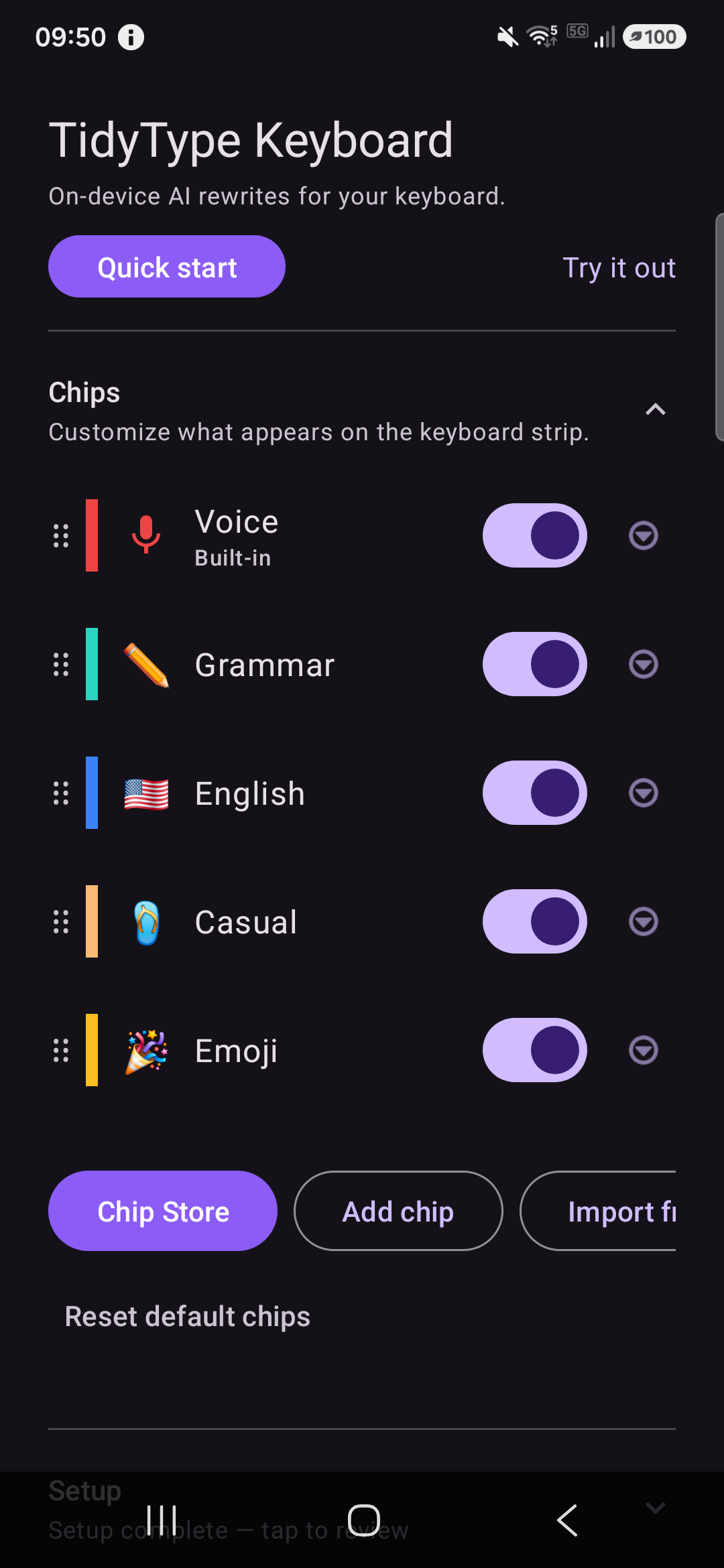
You'll see:
- Your chips, each with an on/off toggle and a drag handle for reordering. Voice sits first and is marked Built-in — it's always available and can only be toggled on or off (no menu).
- A “5 / 30 visible” counter — the strip can show up to 30 chips and it scrolls. Toggle a chip off to hide it without deleting it.
- Chip Store — browse and add more chips.
- Add chip — create your own.
- Import from file button — loads a chip from a shared JSON file
- A quiet Reset default chips link underneath — puts your chip list back to the starting set.
To try chips without leaving the app, tap Quick start at the top of Settings — it opens a practice field with the keyboard up (see Try it out above).
If Chips is collapsed, tap the header row to expand it.
Editing a chip
Tap a chip's row (or its ⋮ menu → Edit) to open the Chip editor. Every chip except Voice is fully editable.
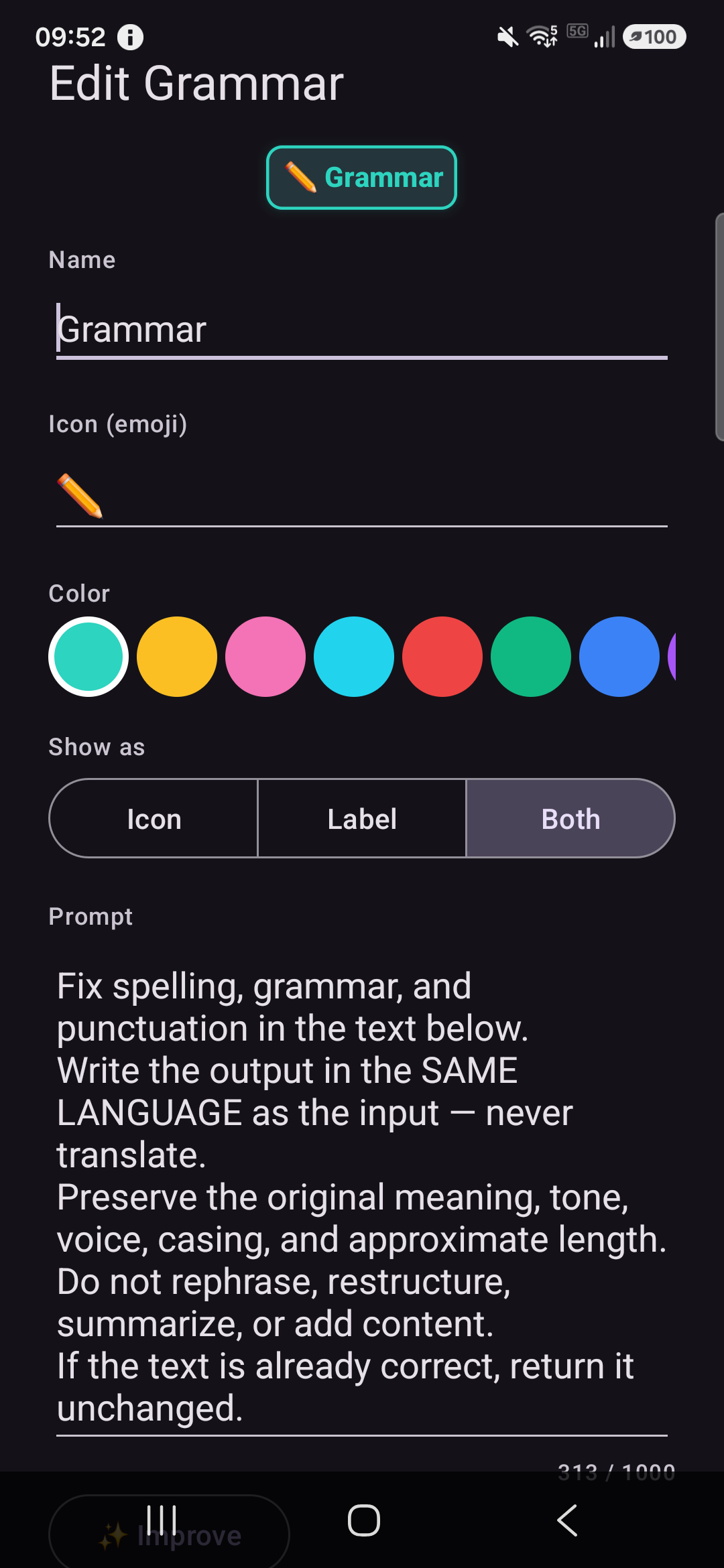
You can change:
- Name — what shows on the chip strip
- Icon (emoji) — the visual anchor
- Color — pick from the palette
- Prompt — the instruction that tells the AI how to rewrite
- Sampler settings (Advanced) — how creative or predictable the output is
Every edit is saved to your device only. Voice has no prompt to edit, so its row shows just the on/off toggle. Translate chips open a simpler editor — a language picker plus optional extra instructions — since their core prompt is managed for you.
Example — customizing Emoji
If you want Emoji to lean into celebration, edit its prompt to something like:
Add 2-4 celebratory emoji to the text below without changing the words. Prefer 🎉 🚀 🙌 ✨. Output only the edited text.
Changed your mind about all your edits? Reset default chips restores the whole starting set.
Adding a chip
Tap Add chip in the Chips section. You get three ways to make one:
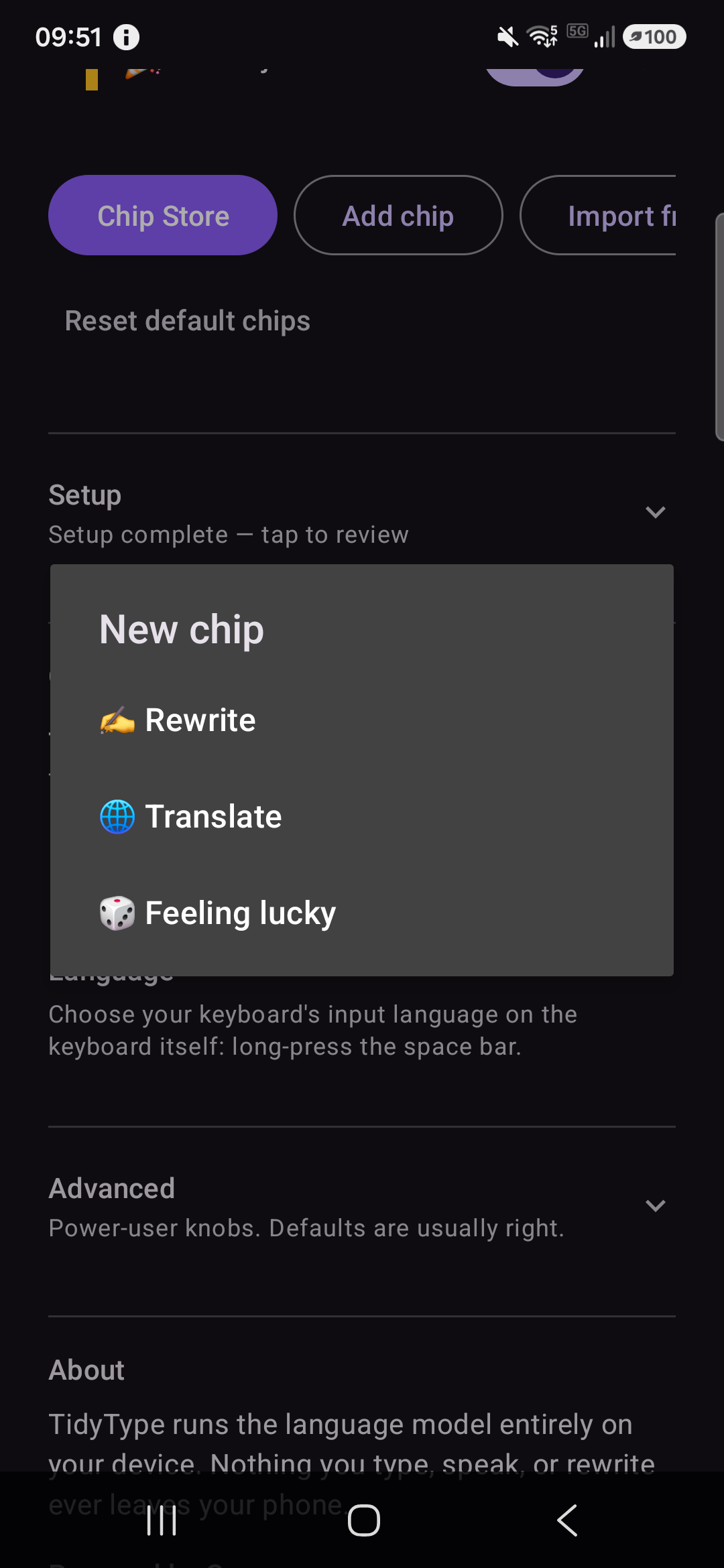
- ✍️ Rewrite — a blank editor for a free-form rewrite chip.
- 🌐 Translate — a simpler editor: pick a target language and, optionally, add extra instructions.
- 🎲 Feeling lucky — TidyType invents a chip for you, then drops you into the editor to tweak it.
For a Rewrite chip you set:
- Name — what shows on the chip strip
- Icon (emoji) — a single emoji as the visual anchor
- Color — pick from the palette
- Prompt — your instruction to the AI
- Sampler settings (Advanced) — leave defaults unless you know what you're doing
Example — a “Bullets” chip
- Name:
Bullets - Icon:
• - Color: teal
- Prompt:
Rewrite the text below as a concise bulleted list. Keep every key point. Output only the list.
Tap Save. Your new chip appears in the list — drag it to reorder, or toggle off chips you don't need to keep the strip tidy.
The Chip Store
Tap Chip Store in the Chips section to browse ready-made chips, grouped into categories — Writing (Grammar, Polish, Short, Simple…), Translation (English, Français, Português…), Tone (Formal, Casual, Confident, Warm…), and more.
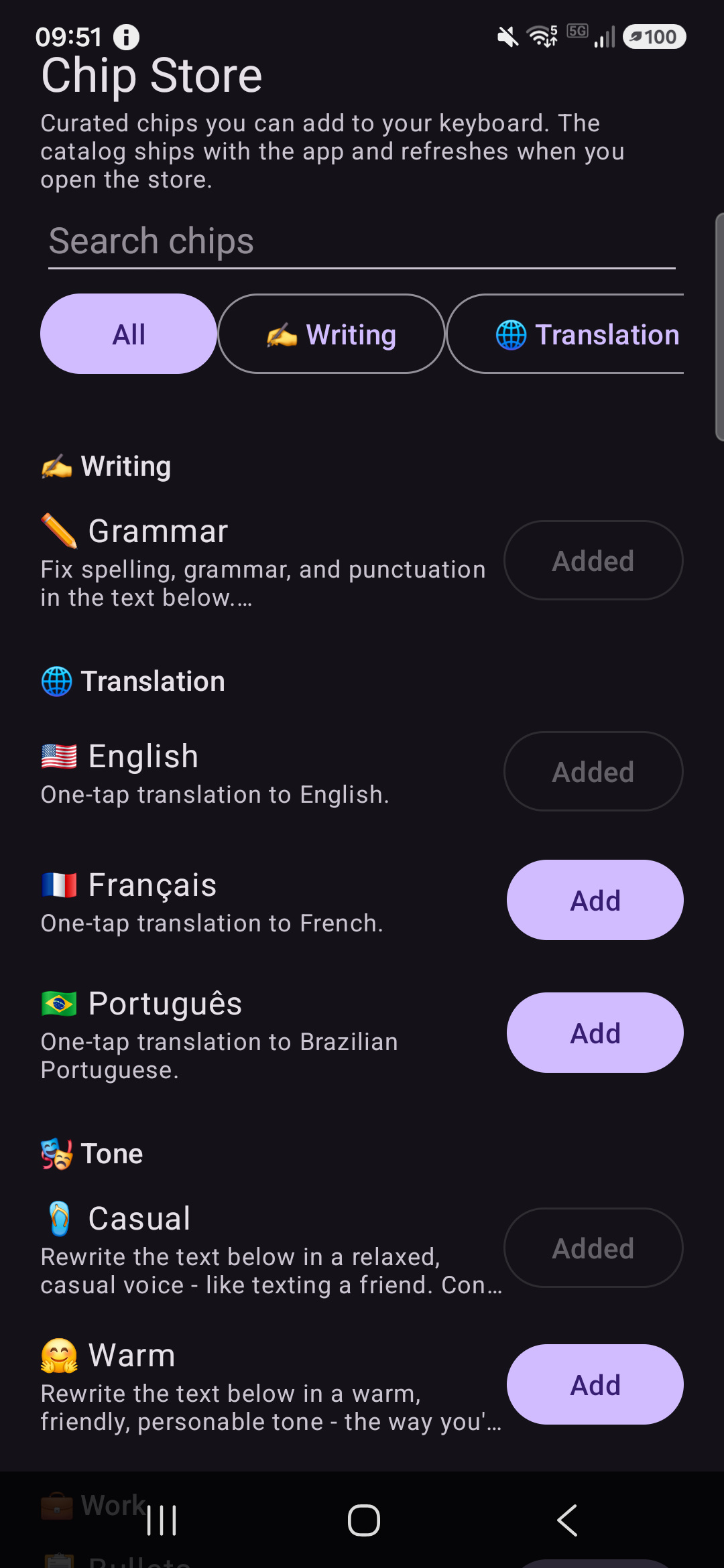
- Tap Add on any chip to drop it onto your strip. Chips you already have show Added.
- Use the search box or category filters to find something specific.
The store's catalog ships inside the app, so it works offline. When you open the store, TidyType also fetches the latest catalog from its server so new chips appear — a plain download that carries nothing about you or your typing.
Reset default chips
Rearranged your strip and want a clean slate? Tap the quiet Reset default chips link under the chip list. After a confirmation, your list goes back to exactly what a fresh install has — Voice, Grammar, English, Casual, Emoji — undoing your additions and edits.
Duplicating a chip
Rewrite chips have a Duplicate action (tap the chip's ⋮ menu → Duplicate). This creates an editable copy — useful when you want a variant of a chip without losing the original.
Sharing chips with others
- Export — from a chip's editor, tap Export as file. A small
.tidytype-chip.jsonfile is created that you can share via any app (Messages, email, Files, etc.). - Import — from the Chips section, tap Import from file and pick a
.tidytype-chip.jsonyour friend sent. The chip appears in your list as an editable copy.
Sharing chips is a good way to spread configurations that work well.
The Settings screen
The Settings screen has a handful of sections:
- Setup — the 3-step wizard (from the section above). Collapses automatically once you're set up. Re-opens on tap; also re-expands on its own if anything regresses (model deleted, keyboard disabled, microphone revoked).
- Chips — your chip roster, the Chip Store, and personalization.
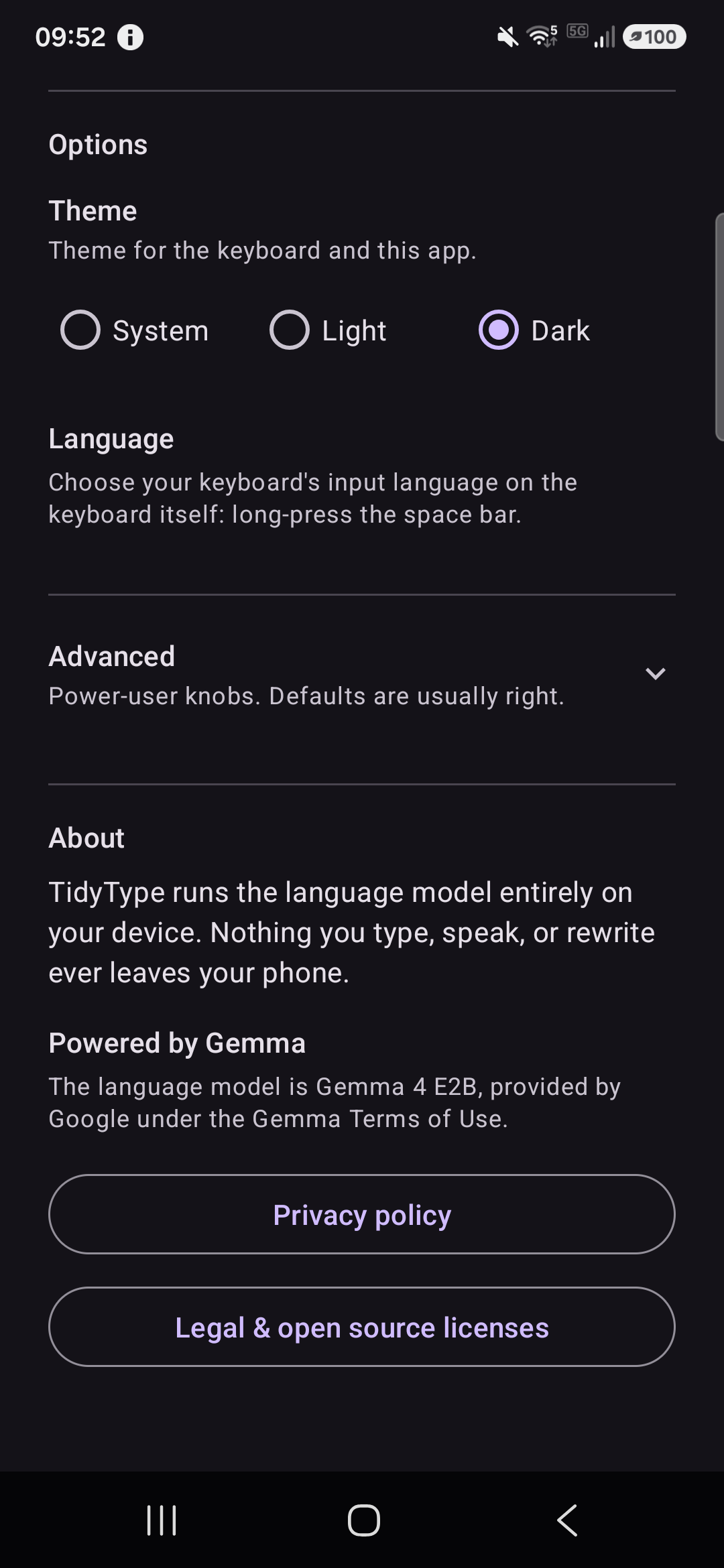
- Options — a Theme picker (System, Light, or Dark; System follows your phone) and a Language row for your keyboard's typing language.
- Advanced — power-user settings; mainly the AI backend. Everything else is auto-detected.
Plus About at the bottom with the Powered by Gemma attribution, Privacy policy link, and Legal & licenses button.
Advanced — AI backend
Under Advanced → AI backend, you can choose how TidyType runs the model on your phone:
- GPU (recommended) — uses the graphics processor. Faster responses; uses a bit more memory. The default on supported devices.
- CPU — uses the main processor. Slower, but more stable on some devices. Try this if rewrites fail or crash.
Most users should stay on GPU. If rewrites keep failing or the app feels unstable, switch to CPU.
Switching backends triggers a short model reload (~10 seconds) during which the chip strip is temporarily disabled.
Delete model
Under Setup → Step 1 (expand the Setup section if it's collapsed), the same row that showed “Download” now shows Delete model. Tap it to remove the 2.47 GB AI model file from your device.
The keyboard still works after deletion — you can still type, use shift, symbols, and voice input via the system mic — you just lose all the chip rewrite features until you tap Download again to reinstall the model.
Experimental features
Some features are still being polished. They're off by default and live behind a switch in Settings → Advanced, so they never get in your way until you ask for them.
📷 The Camera chip (image-to-text)
The Camera chip reads text from a photo — point your camera at a sign, a book page, a receipt, or a business card, snap it, and TidyType transcribes the text straight into whatever field you're typing in. Like everything else, it runs entirely on your device; the photo never leaves your phone and is deleted right after it's read.
Turning it on
- Open Settings → Advanced.
- Switch on “Experimental Camera chip (image-to-text)”.
- A note explains it's experimental and uses a bit more memory — it's well tested on a 12 GB phone, so skip it if yours has under 6 GB. Tap Enable, and the Camera chip appears on your strip, ready to use.
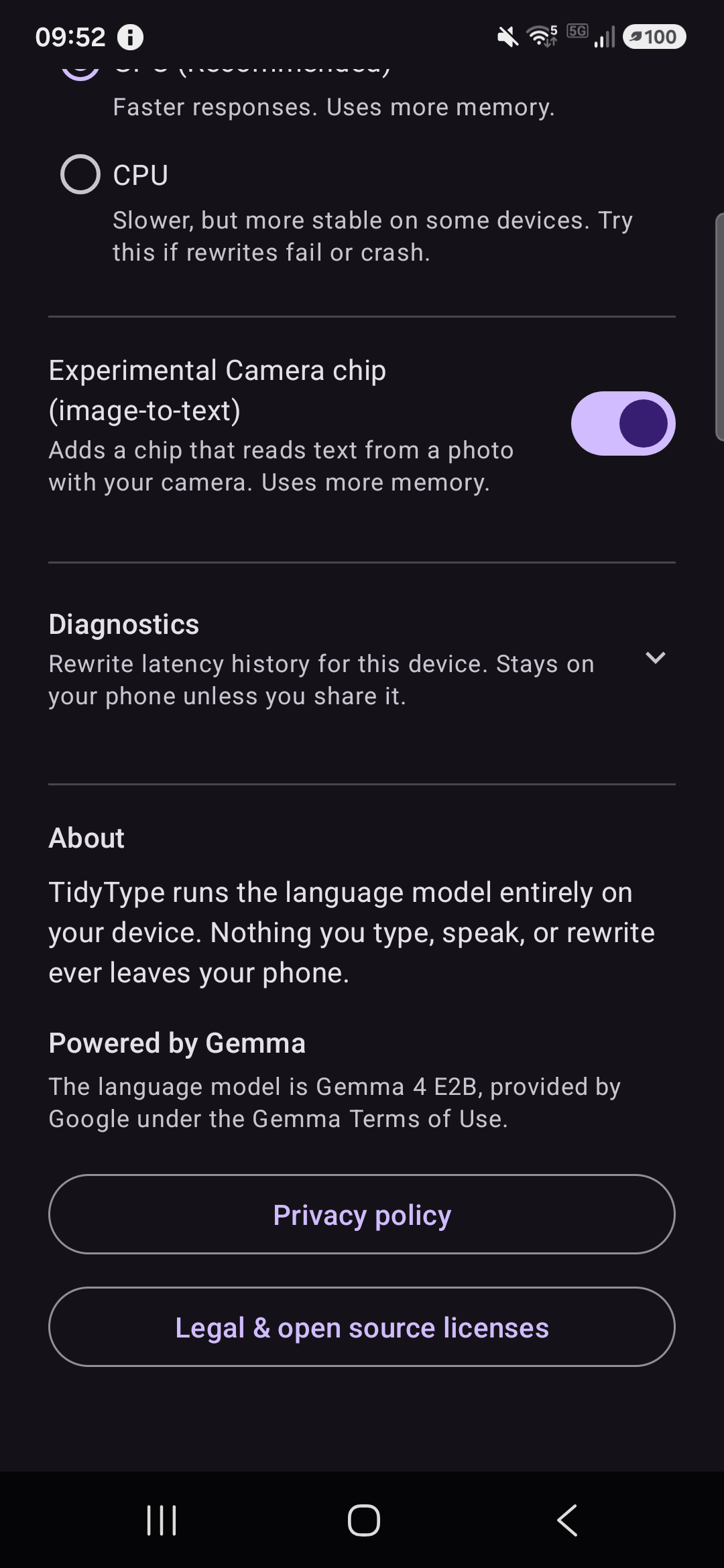
If you ever want it gone, switch the same toggle off — or tap Reset default chips in the Chips section, which turns the experiment back off.
Using it — three taps, start to finish:
- Tap 📷 Camera → your camera opens → take a photo of the text → confirm. The recognized text is inserted into your field.
- It commits the text automatically, so if the reading is imperfect (small print, handwriting, glare), just fix it like any other typo.
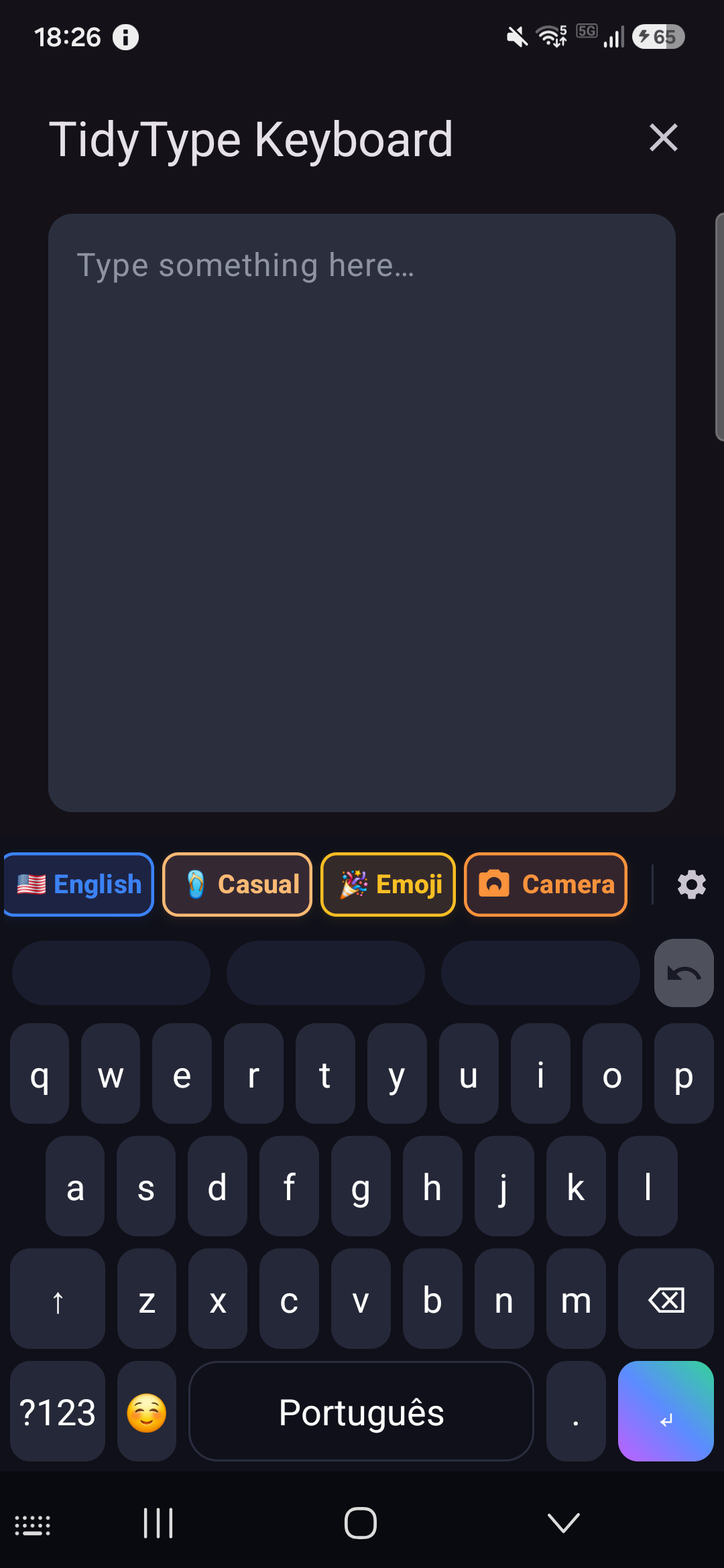
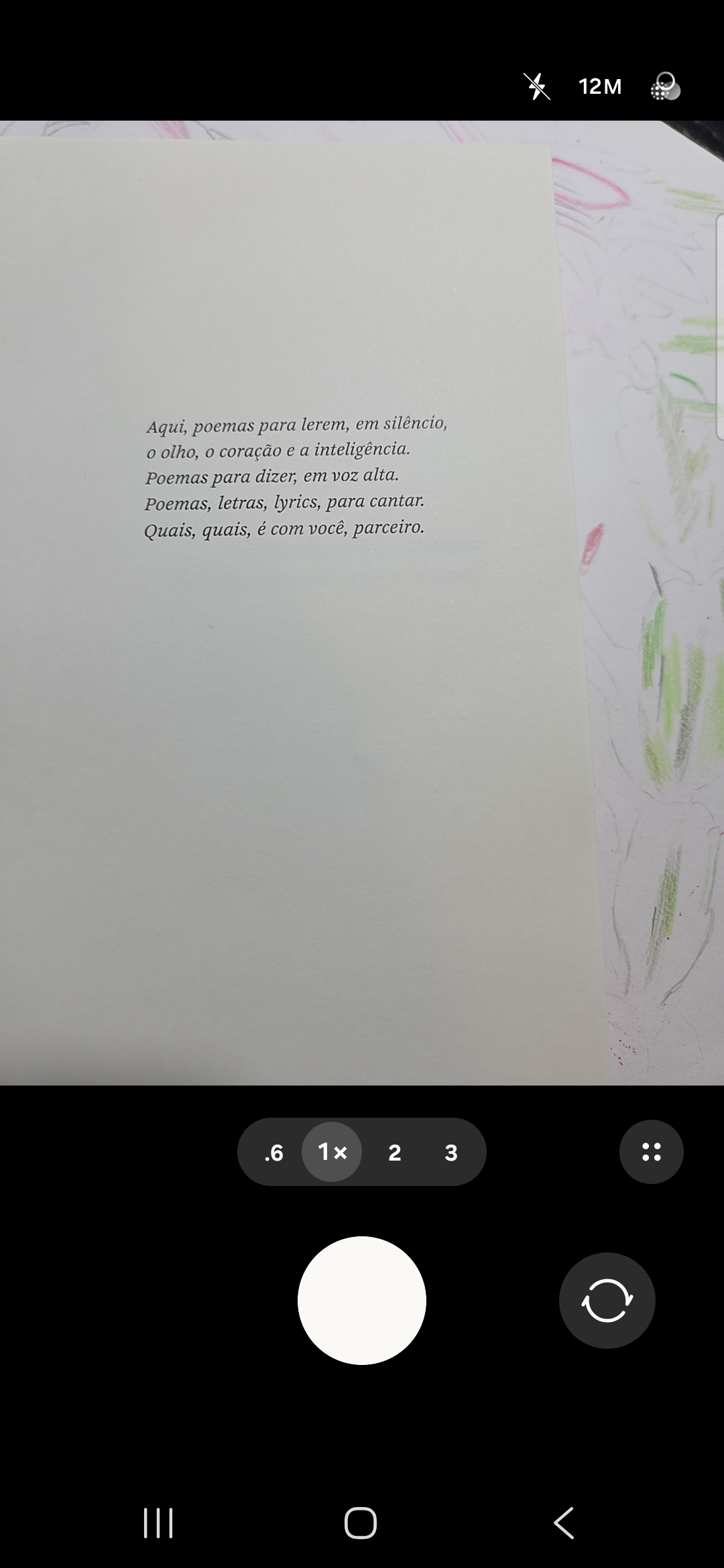
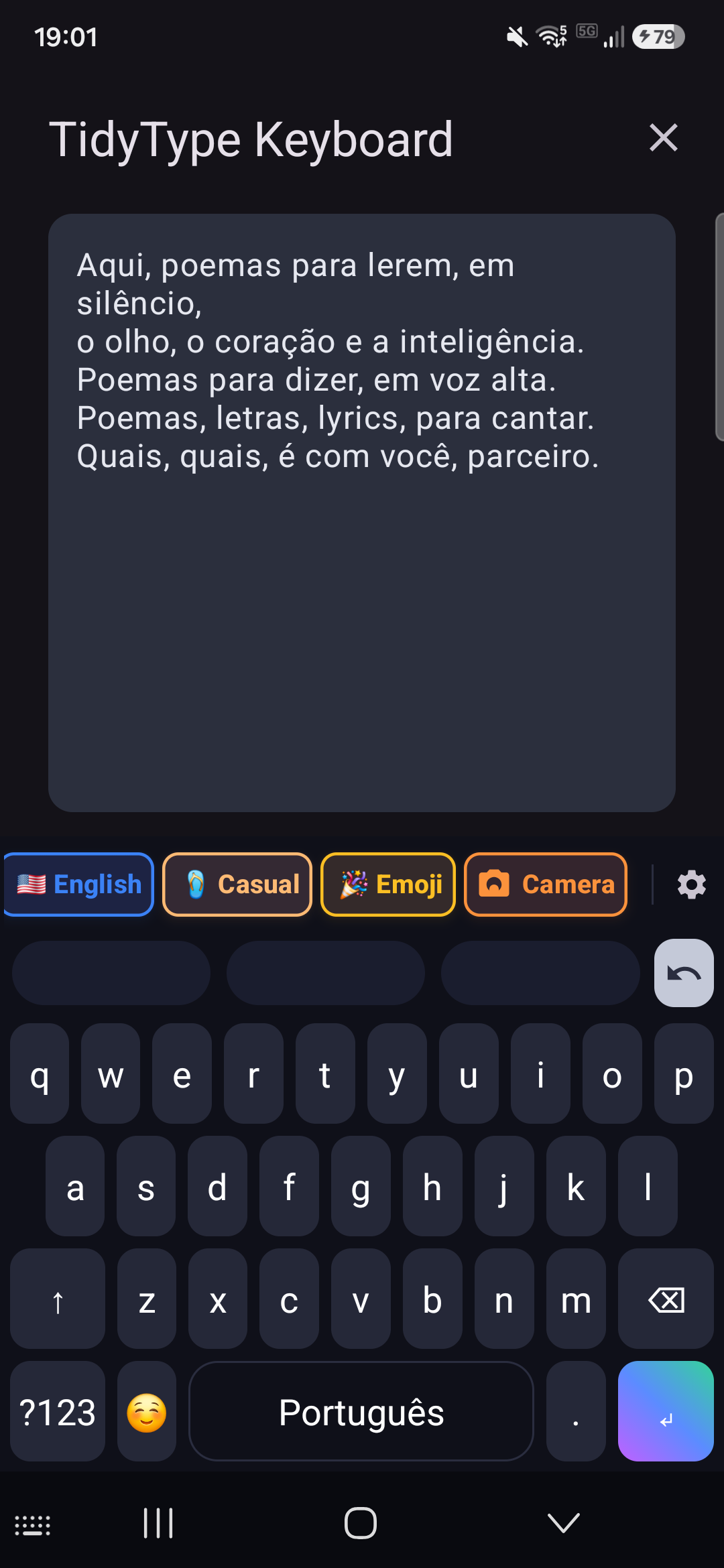
Crop before reading — long-press the Camera chip for one option, “Crop image before transcribing.” Turn it on when you want to trim the photo down to just the text (handy for one line on a busy page); leave it off to read the whole shot.
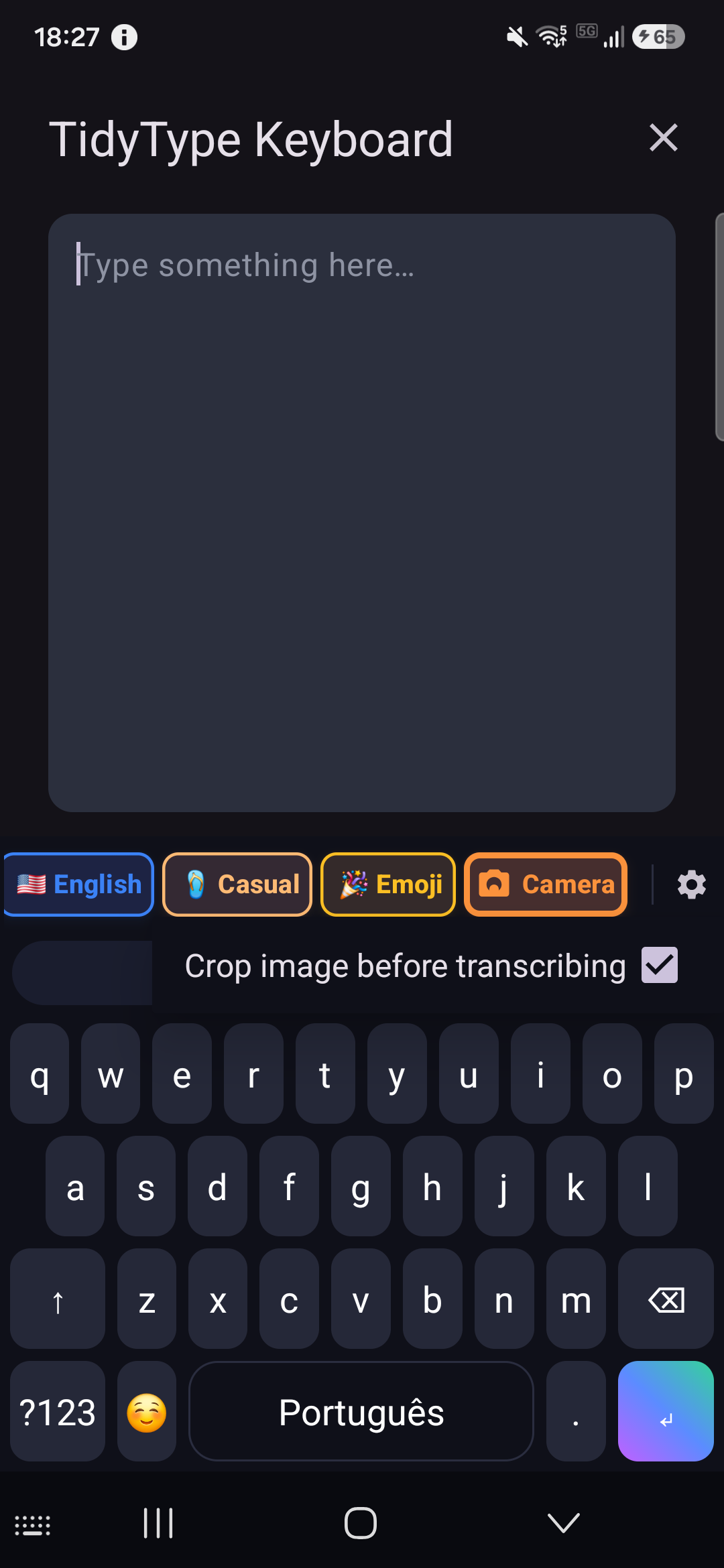
Note the Camera chip is disabled in sensitive fields (passwords, card numbers), and the very first capture after opening the keyboard is a little slower while the image part of the model warms up.
Privacy and legal
What TidyType sends
Nothing you type or speak is ever sent off your device. The AI model runs entirely on your phone using LiteRT-LM, Google's on-device runtime. There is no cloud, no server, no analytics event stream, no telemetry — full stop.
The only network activity TidyType performs:
- Model download — one-time, at first launch, from our secure servers. This is the only time the app talks to the internet during normal use.
- Version check (future) — TidyType may occasionally check whether a newer model file is available. This does not send any information about you.
- Chip Store catalog refresh — when you open the Chip Store, TidyType may fetch the latest catalog so new chips appear. This is a plain download that carries nothing about you or your typing.
If you want to verify: put your phone in airplane mode after the model finishes downloading. Chips continue to work. Voice input continues to work. Nothing breaks.
Powered by Gemma
The AI model TidyType uses is called Gemma 4 E2B, developed and released by Google. Gemma is licensed under the Gemma Terms of Use — you implicitly accept these when using TidyType.
Gemma is a third-party component; it is not part of TidyType and Google does not endorse TidyType.
Sensitive fields — hard block
TidyType detects when you're typing into a password, OTP, credit card, or other sensitive field and disables all AI features. The chip strip greys out with a message “Can't rewrite in sensitive fields.”
No text from these fields ever enters TidyType's rewrite pipeline — not even for a moment. This is non-negotiable safety.
Microphone
The microphone opens only when you tap the 🎙 Voice chip. It closes when the recording ends or when you cancel. TidyType is not listening in the background, does not have a wake phrase, and does not stay on between recordings.
The recorded audio is processed on-device and deleted immediately after transcription completes.
Open source
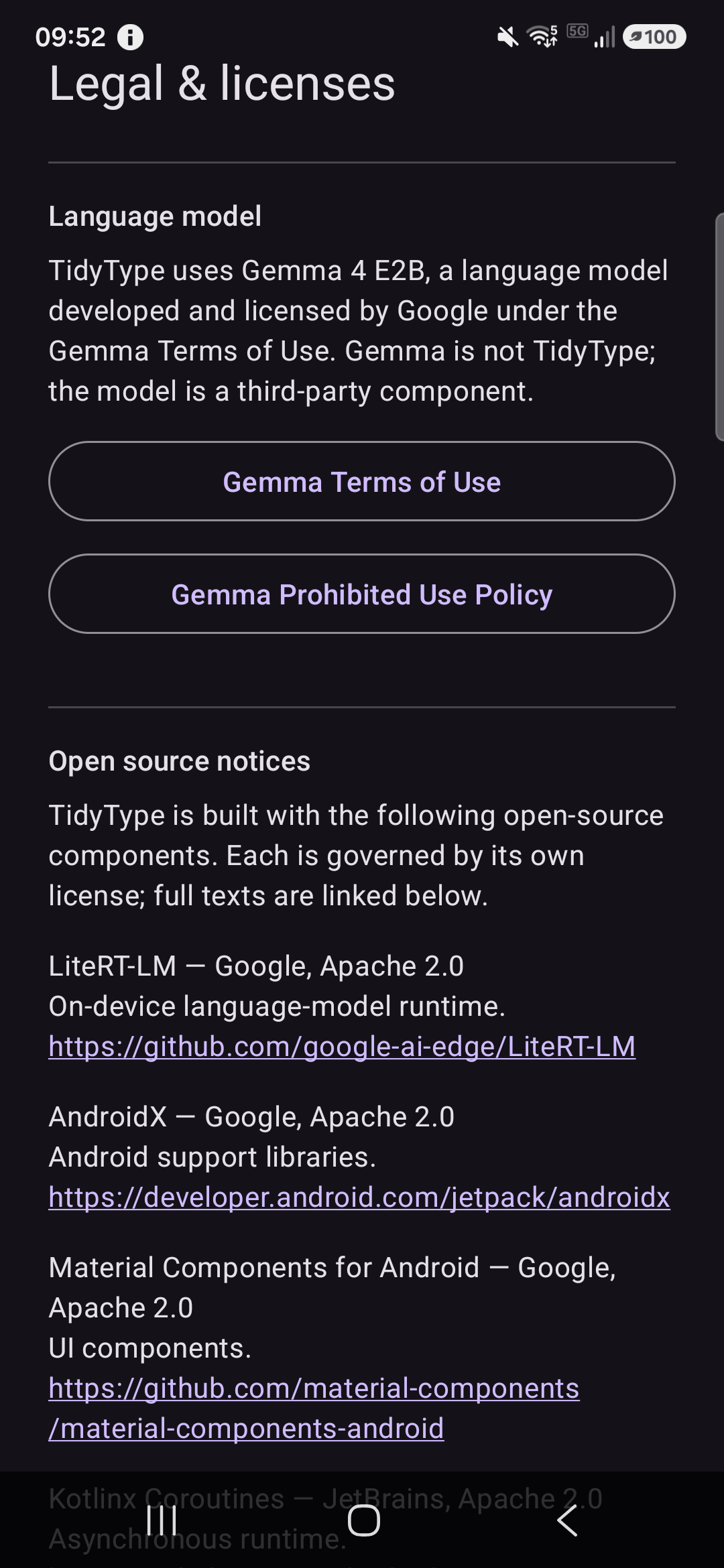
TidyType is built on top of several open-source libraries. Attribution and licenses for each are in Settings → About → Legal & open source licenses (also on the Legal page).
Troubleshooting
The keyboard doesn't appear when I tap a text field
- Verify TidyType is enabled and selected as default in Android Settings → General management → Keyboard list & default (path varies by phone).
- On Samsung phones, you may need to accept the “may collect what you type” warning twice before the keyboard binds. This is a Samsung quirk.
- Try force-stopping and re-opening TidyType from Settings → Apps → TidyType.
The chip strip shows “Loading…” and never becomes ready
- Verify the model finished downloading. Open TidyType Settings, expand the Setup section if it's collapsed, and check Step 1 — it should show ✅ “Model installed and ready.”
- If Step 1 shows “Downloading,” give it 2–5 minutes on Wi-Fi.
- If Step 1 shows an error, tap Retry in the same row.
Rewrites take 5+ seconds each
- Your device may be on CPU mode. Go to Settings → Advanced → AI backend and select GPU.
- If GPU makes no difference (or causes failures), your device may not have a compatible GPU. CPU mode is normal on such devices.
“Not enough free space” error at download
- The 2.47 GB model plus workspace needs ~3 GB of free storage.
- Free up space and retry.
The model finished downloading but chips still don't work
- Fully close TidyType from your recent apps list and reopen it.
- If still broken, expand Setup → Step 1, tap Delete model, then tap Download to reinstall from scratch.
Voice recording doesn't work
- Verify the microphone permission is granted. Open TidyType Settings, expand Setup if collapsed, and check Step 3 — it should show ✅ “Microphone allowed.”
- If Step 3 still shows an Allow microphone button, tap it to grant.
- If the button says Open app permissions instead, the permission was permanently denied — tap it to open Android's app permissions screen and grant from there.
The rewrite output isn't in my language
- Check the Language shown on your space bar. Long-press it to switch between your typing languages (or set it in Settings → Options → Language).
- For translations, remember each translate chip has a fixed language — long-press it to switch, or add a chip for the language you want from the Chip Store.
The rewrite output is weird or wrong
- Tap ↩ Undo in the chip strip within 5 seconds.
- Try again — the AI is sometimes non-deterministic on creative chips like Emoji or the tone chips.
- If a specific chip is consistently unhelpful, edit its prompt in Settings → Chips (see Personalizing chips).
Where to go from here
- Share your favourite chip configurations with friends by exporting them as
.tidytype-chip.jsonfiles. - Try the voice chip in a language you're learning — dictate in your native language, translate to the target language.
Thanks for using TidyType. Rewrites without a round-trip.